
My Timeline
My Timeline provides a chronological view of activity associated with your Mavtrek account. Use it to find recent events, review what changed, and return to related records.
Before you begin
Section titled “Before you begin”- Sign in to Mavtrek.
Open My Timeline
Section titled “Open My Timeline”- From the Mavtrek homepage, select My Timeline in the center of the page.
- Alternatively, select your photo or name in the upper-right corner, choose My Settings, and then select Timeline from the left sidebar.
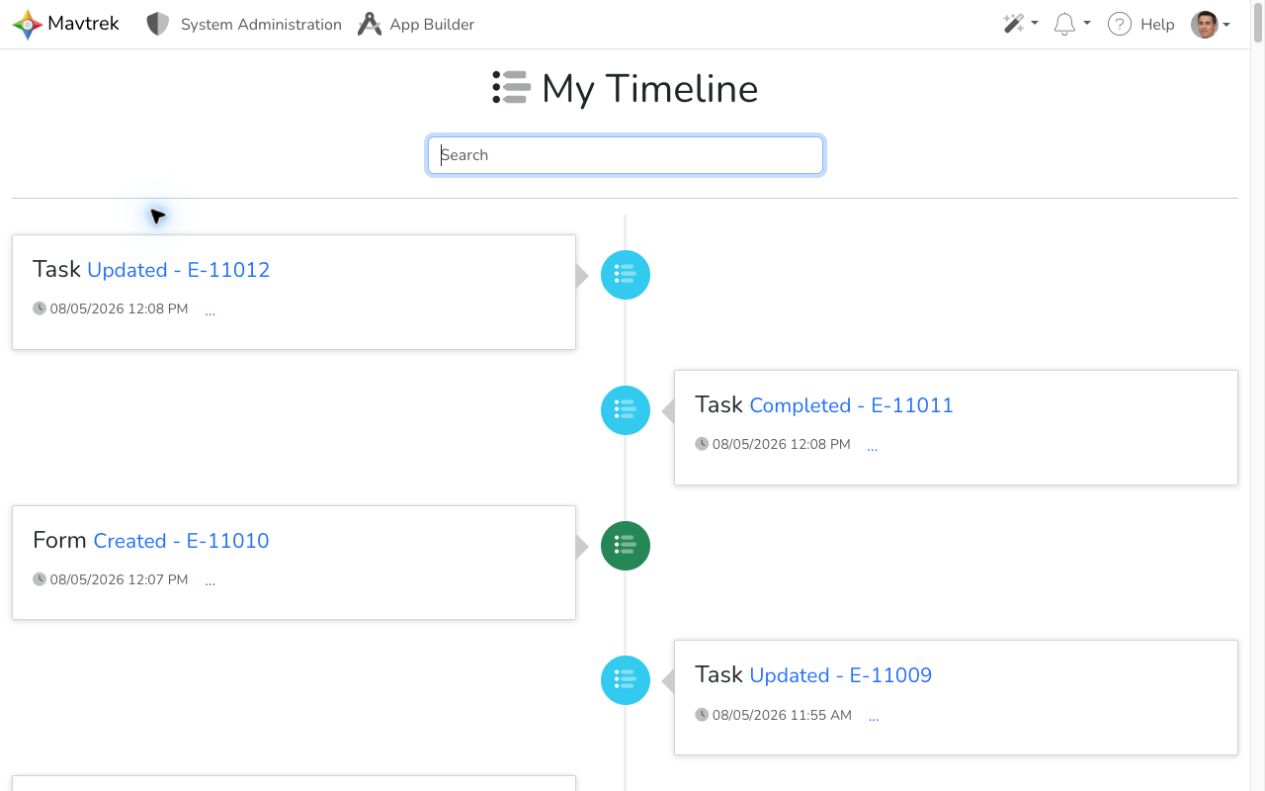
Review your activity
Section titled “Review your activity”- Review the entries in chronological order. Each entry identifies the record type, action, related record, and event time.
- Enter a word or record number in Search to narrow the displayed activity.
- Select the linked action and record number, such as Updated - E-11012, to open the related record.
- Select … on an entry to expand its change details. Select it again to collapse the details.
- Select Load More at the bottom of the page when you want to display additional events.
What happens next
Section titled “What happens next”My Timeline remains available from the homepage and from My Settings. Opening a linked entry takes you to its related Mavtrek record so you can review the current information.
For other account options, see My Settings.